Report display
The report display is part of the study page. Depending on your role and permissions, you can view, create or edit reports. By default, the report will be displayed in the first view port (if a report is available for the study).
|
Tip |
|

|
When logged as a patient, the report will only be accessible if permitted by the radiology department.
|
Overview
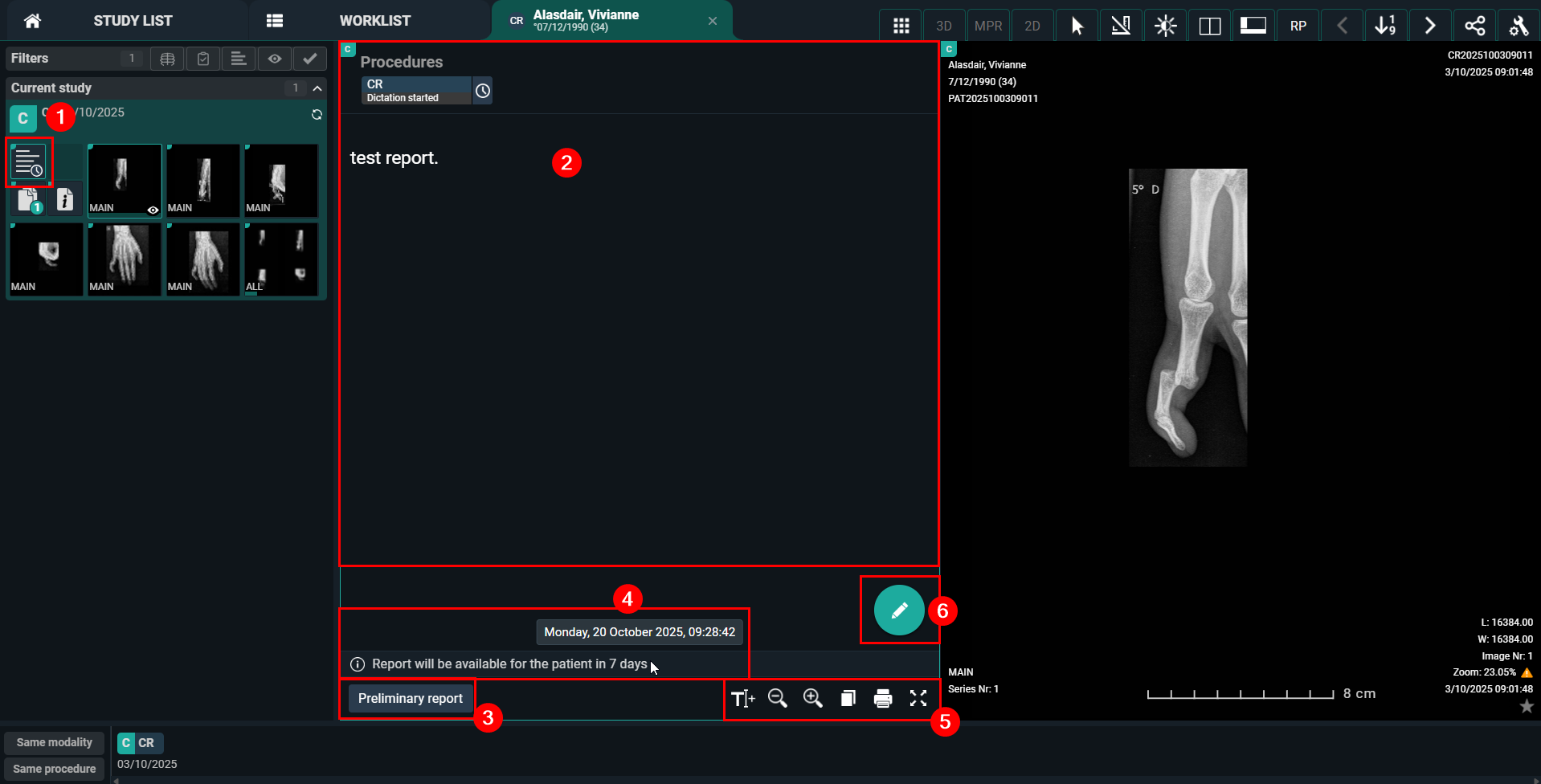
Number | Description | ||||
|---|---|---|---|---|---|
1 | The report icon. Click on it to open the report display. | ||||
2 | The report window. | ||||
3 | The status of the report. The possible report statuses are: No report, Draft report, Preliminary report, Validated report, Validated addendum. | ||||
4 |
Hover over the message to display the exact time and date when the report will become available to the patient. | ||||
5 | Switch to full screen, zoom, copy to clipboard, print the report or create a new text block. | ||||
6 | Click to create or edit the report. | ||||

Note | |
 | If the report was sent in PDF format, you cannot edit it, but zoom, print, download etc. by using the buttons in the top toolbar. |
Creating and/or editing a report
1. To create or edit a report, respectively, click the pencil icon.
If the rich reporting setting is enabled for you, a comprehensive text editor becomes available. 
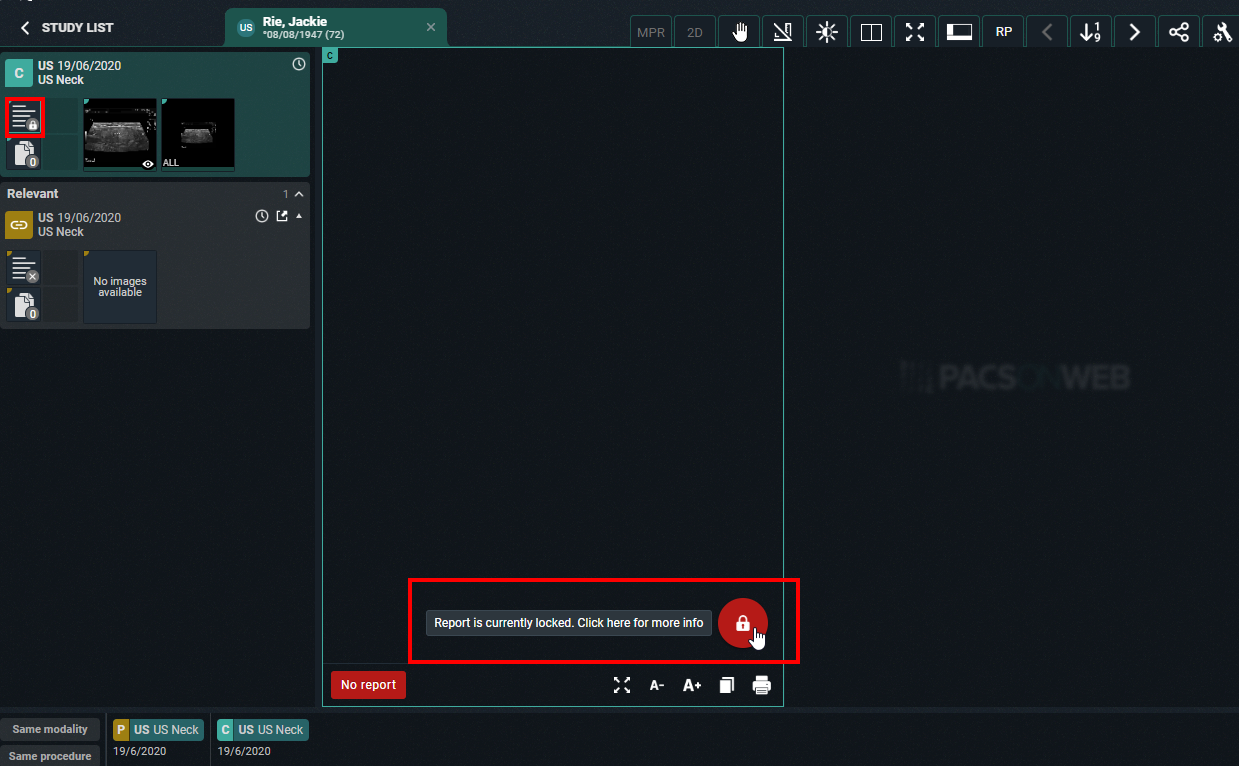
2. Once a report has been set to edit mode, it will be locked for any concurrent users to prevent two persons working on the same report at the same time. This is indicated by a lock icon in the series picker and the report window.
If you click on the lock icon further information on who is editing the report at the time will be displayed.
3. Once the report has been completed, it should be verified and saved from the browser window. Depending on your role, permissions and radiology department, you have different options of saving the report or sending it out for correction. For further questions, please contact your internal DeepUnity PACSonWEB admin or DH Healthcare GmbH.
Saving option | Action | Role | ||||
|---|---|---|---|---|---|---|
Save | Saves the report without changing its status. | Transcriptionist | ||||
Send for approval | Sends the report to the radiologist and sets the study status to To validate. | Transcriptionist | ||||
Save draft | Creates a draft version that can be edited at a later point in time. If a draft report is edited and cleared, it will be marked as No report.
| Resident/Supervisor | ||||
Save preliminary | Creates a preliminary version that can be edited at a later point in time. Once a report has been saved as preliminary, it is not possible to revert it back to Draft report or No report. | Resident/Supervisor | ||||
Send for review | Assigns the report to a supervisor for review and sets the study status to Pending second validation. | Resident/Supervisor | ||||
Send for correction | Sets the study status to Pending report correction so a transcriptionist can work on it. | Resident/Supervisor | ||||
Back to author | Sends the report back to the resident and sets the study status to To validate. | Supervisor | ||||
Save and validate | Validates the report. Once a report has been saved as validated, it is not possible to revert it back to Draft report or No report. Depending on the advanced configuration for your radiology department, it may not be possible to modify a report that has been marked validated. | Resident/Supervisor | ||||